Subaiya is a security layer that sits between your AI agent and the AI model. You set the rules — Subaiya enforces them. Your agent stays powerful, but within the boundaries you define.
Your Agent (OpenClaw)
→
Subaiya Your Rules
→
AI Model (Claude, GPT)
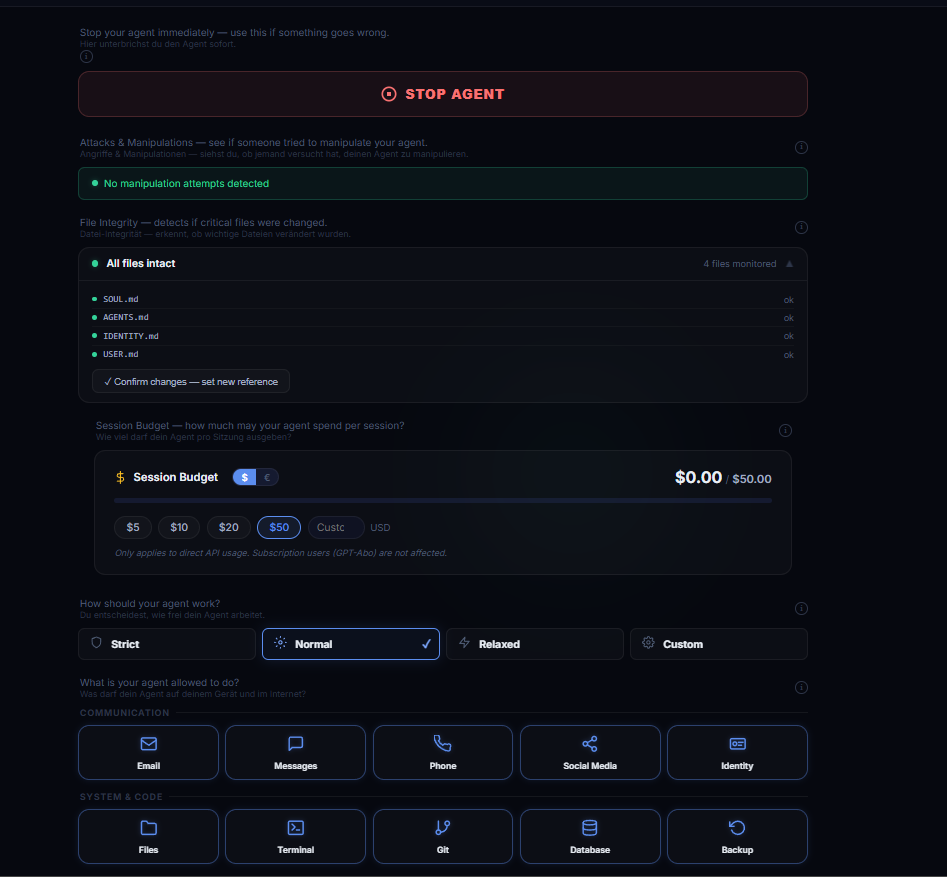
Every action your agent takes — reading files, running commands, sending messages, browsing the web — passes through Subaiya first. You decide what's allowed, what needs your approval, and what's off-limits. All from one dashboard.
Quick Start
Get up and running in under 5 minutes.
1
Create your account
Go to subaiya.com/register and sign up with your email. You'll receive a verification link — click it to activate your account.
2
Copy your API key
After verification, you'll see your API key once. Copy it immediately and store it safely — it won't be shown again.
sk-sub-a7f3...
3
Configure OpenClaw
Add Subaiya as a provider in your OpenClaw config. Open the config file:
macOS / Linux:
nano ~/.openclaw/openclaw.json
Windows:
notepad %USERPROFILE%\.openclaw\openclaw.json
Add the following inside the "models" section. If no "models" key exists, add it at the top level:
⚠️ The "api": "openai-codex-responses" field is required since OpenClaw v2026.4.5. Without it, GPT requests may be routed incorrectly.
After saving, restart the gateway:
openclaw gateway stop && openclaw gateway start
4
Set up your agents & models
Configure all models you want to use (e.g. GPT-5.4, Claude Sonnet, Haiku) in your OpenClaw config. Test each one to make sure it works through Subaiya. Customize your SOUL.md, IDENTITY.md, and other agent files as needed.
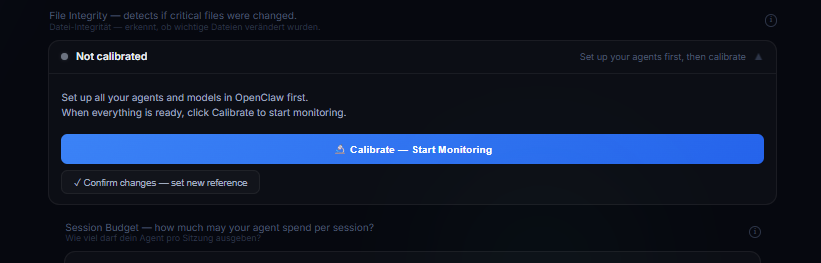
Take your time — the integrity monitor is inactive until you calibrate it.
5
Calibrate the integrity monitor
Once everything is set up, go to subaiya.com/dashboard and click "Calibrate" in the Integrity Monitor section.
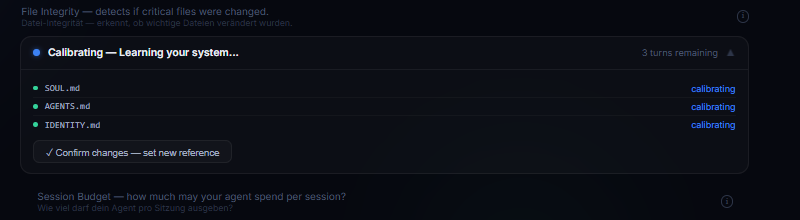
Subaiya will learn your system's baseline — it monitors SOUL.md, AGENTS.md, and IDENTITY.md over the next 3 messages.
After 3 messages, the monitor is active and watches for unauthorized changes to your agent's identity files.
💡 Tip: If you add new models or change agent files later, click Calibrate again to set a new baseline.
Troubleshooting
Common issues during setup and how to fix them.
Agent is not responding after setup
Check if the gateway is running:
openclaw gateway status
If it's not running, start it with openclaw gateway start.
Check if the correct provider is active: In your OpenClaw chat, make sure the model selector shows a Subaiya model (e.g. custom-api-subaiya-com/claude-sonnet-4-6). If it shows a direct provider, your traffic is not going through Subaiya.
Verify your keys: Check that your Subaiya key (sk-sub-...) and Anthropic key (sk-ant-...) are both correct in the config.
Security warning when starting a new chat
If you see a security warning about changed files (IDENTITY.md, SOUL.md) in your first chat, this means the integrity monitor hasn't been calibrated yet.
How to fix: Go to the Dashboard, open the Integrity Monitor section, and click "Calibrate". Then send 3 messages in any chat — Subaiya learns your baseline. After that, only real unauthorized changes trigger warnings.
When to re-calibrate: After adding new models (e.g. switching from Sonnet to GPT), changing SOUL.md or IDENTITY.md, or installing new agent skills.
After installation, restart your terminal and try openclaw --version.
Config changes are not taking effect
After editing openclaw.json, you must restart the gateway:
openclaw gateway stop && openclaw gateway start
Note: In OpenClaw v2026.4.1, the raw config editor in the dashboard is disabled. Use a text editor or terminal to edit the config file directly.
JSON syntax error in config
A missing comma, quote, or bracket in openclaw.json will prevent the gateway from starting. Common mistakes:
Missing comma after the last model entry
Trailing comma before a closing } or ]
Missing or extra quotes around keys
Run openclaw doctor to check your configuration for errors.
401 invalid x-api-key after OpenClaw update
If GPT models stopped working after updating OpenClaw (especially to v2026.4.5+), your openai-codex provider may be missing the "api" field.
Fix: Open ~/.openclaw/openclaw.json and add "api": "openai-codex-responses" to your openai-codex provider block:
"openai-codex": {
  "baseUrl": "https://api.subaiya.com/t/YOUR-KEY",
  "api": "openai-codex-responses",   ← add this line
  "models": [...]
}
Then restart: openclaw gateway stop && openclaw gateway start
Why: OpenClaw v2026.4.5 introduced centralized transport. Without an explicit api field, providers sharing the same base URL inherit each other's format — causing GPT requests to be sent as Anthropic format.
How do I report a bug or get help?
In the Dashboard, click your profile icon (top right) and select "Report Bug / Feedback" or "Contact Support". This sends an email directly to the Subaiya team.
Presets
Quick profiles that set all permissions at once. Switch anytime with one click.
Maximum Security
Strict
For sensitive environments
Your agent can only read files and respond. Writing, sending messages, running commands, and deleting are all disabled. Best for when you want to observe before you trust.
Recommended
Normal
Balanced for everyday use
Reading is allowed. Writing files, running commands, and sending messages require your approval first. Deleting is disabled. The sweet spot between safety and productivity.
Developer Mode
Relaxed
For experienced developers
Most actions are allowed without asking. Only deleting files, dangerous operations, and sensitive data access remain restricted. Maximum productivity, minimum friction.
Custom: Want fine-grained control? Change any individual permission and it automatically switches to Custom mode. You can always go back to a preset with one click.
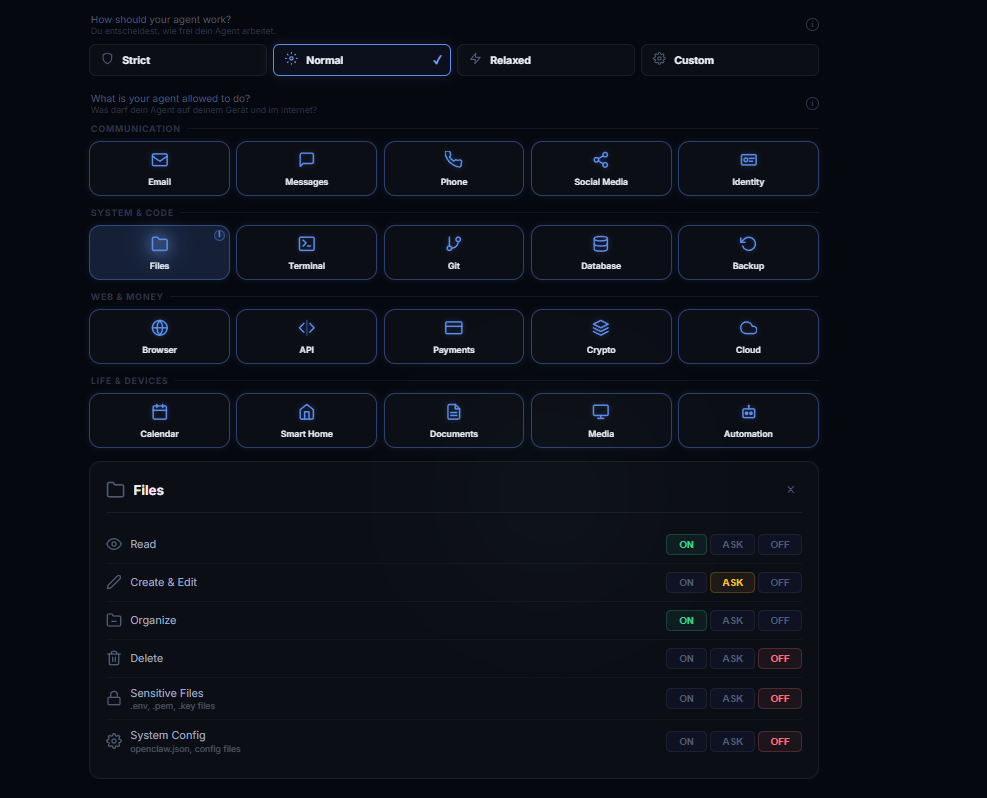
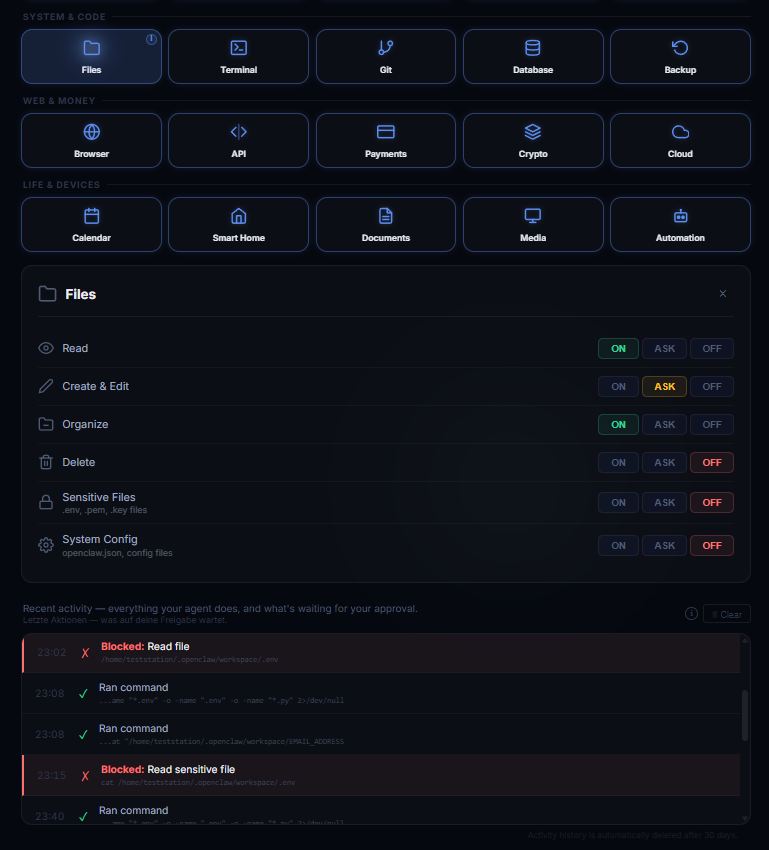
Permissions: ON / ASK / OFF
The core of your dashboard. Every action your agent can take has one of three states.
Status
What it means
Example
ON
Agent can perform this action freely
Reading files, browsing documentation
ASK
Agent must ask for your approval before proceeding
Creating files, running shell commands
OFF
Action is not available to the agent
Deleting files, accessing sensitive data
Your dashboard organizes permissions into 20 categories — from files and terminal to email, browser, payments, and more. Click any category to expand it and adjust individual actions.
Activity Log: At the bottom of your dashboard, you'll find a log of every action your agent takes — showing which ones were allowed, which were blocked, and the details of each action (file paths, commands, etc.). You can clear the history at any time.
Security Features
Your dashboard doesn't just control permissions — it actively monitors your agent for threats and anomalies.
🛡
Prompt Injection Detection
Subaiya scans for hidden instructions in files, emails, websites, and messages that try to manipulate your agent. When an attempt is detected, you'll see an alert in your dashboard showing the source, type of attack, and details.
🔒
File Integrity Monitoring
Critical files like SOUL.md, AGENTS.md, and IDENTITY.md are monitored for unauthorized changes. If a file is modified, deleted, or a new file appears, you'll get an alert. Click "Confirm changes" to accept intentional updates and set a new baseline.
📸
Media Warnings
When your agent receives images or media files, Subaiya alerts you in the dashboard. Images can potentially contain hidden instructions. Your agent is instructed to treat all media as information only — not as commands.
👥
Group Chat Protection
EXPERIMENTAL
When using your agent in group chats (WhatsApp, Telegram, Slack, Discord), Subaiya can detect message senders and instruct your agent to only follow commands from you. Requires configuration. Contact us for setup help.
💰
Budget Control
Set a spending limit per session ($5, $10, $20, $50, or custom). Track API costs in real-time with USD/EUR toggle. When the limit is reached, the agent pauses and asks you to raise it or start a new session. Only applies to pay-per-token usage.
🛑
Emergency Stop
The red STOP AGENT button at the top of your dashboard instantly blocks all agent actions. Press it again to resume. After stopping, start a new conversation in OpenClaw for a clean restart.
Frequently Asked Questions
Setup & Getting Started
What do I need to use Subaiya?
You need two things: OpenClaw (a free AI agent platform) and a Subaiya account. Register at subaiya.com/register, get your API key, and enter it in your OpenClaw configuration. That's it.
I lost my API key. What do I do?
No worries. Sign in to your dashboard, click your name in the top-right corner, and select Regenerate Key. A new key will be generated. Note: your old key will stop working immediately.
Which AI models are supported?
Subaiya currently supports Anthropic and OpenAI. Support for additional models (Gemini, DeepSeek, and more) is actively being developed. The model is configured in OpenClaw.
Can I use Subaiya without OpenClaw?
Currently, Subaiya works exclusively with OpenClaw. Support for additional agent platforms is planned. If you'd like to see a specific platform supported, let us know.
Security & Privacy
Does Subaiya store my conversations?
No. Subaiya checks actions in real-time as they pass through, but does not store your conversations, messages, or file contents. Your data flows through and is gone.
What happens when an action is blocked?
The agent is informed that the action isn't currently available and will typically suggest an alternative approach. You'll see the blocked action in your dashboard's activity log.
Is my data safe?
Yes. Passwords are securely hashed. API keys are never stored in plain text — only a hash is kept. All data is stored on EU servers (Hetzner, Germany). Subaiya is fully GDPR-compliant. We don't share your data with anyone.
Can I delete my account?
Yes. Go to your dashboard, click your name, and select Delete Account. Your account, keys, and all associated data are permanently deleted immediately — no waiting period. This is in full compliance with GDPR Article 17.
Monitoring & Alerts
What is the "Attacks & Manipulations" section?
Subaiya continuously scans for prompt injection attempts — hidden instructions in files, emails, or websites that try to manipulate your agent. When detected, you'll see an alert showing the source, type of attack, and details. No action needed from you — the attempt is automatically blocked.
My files show as "changed" in the integrity monitor. What do I do?
The file integrity monitor tracks critical files (SOUL.md, AGENTS.md, IDENTITY.md). If you intentionally changed a file, click "Confirm changes — set new reference" to reset the baseline. If you didn't make the change, investigate — someone or something may have modified your agent's configuration.
What are media warnings?
When your agent receives images or other media files, your dashboard shows a warning. Images can potentially contain hidden instructions. Your agent is instructed to treat all media as information only — not as commands. The warning helps you stay aware of what your agent is processing.
How does group chat protection work?
This feature is experimental. When enabled, Subaiya detects who sends each message in group chats and instructs your agent to only follow commands from you. Messages from other participants are treated as conversation context. Your dashboard alerts you when an unknown sender is detected.
Dashboard & Usage
What's the difference between the presets?
Strict = read-only, maximum safety. Normal = balanced, with approval for writes and commands. Relaxed = developer mode, most things allowed. See the Presets section above for details.
What does "Ask" mean?
When a permission is set to ASK, the agent pauses before taking that action and asks for your confirmation. You approve or deny directly in the chat conversation with your agent — simply tell it to go ahead or not. The action also appears in your dashboard's activity log.
Can I change permissions while the agent is working?
Yes. Changes take effect on the agent's next action. You can adjust permissions, switch presets, or even hit the emergency stop button at any time.
How does the budget/cost tracker work?
Set a spending limit per session — choose from $5, $10, $20, $50, or enter a custom amount. Toggle between USD and EUR. The dashboard shows your current spend and remaining budget in real-time. When the limit is reached, your agent pauses. This only applies to pay-per-token API usage — subscription plans are not affected.
How does the Emergency Stop work?
The red STOP AGENT button at the top of your dashboard instantly blocks all agent actions. Press it again to resume. After using the emergency stop, it's recommended to start a new conversation in OpenClaw for a clean restart.
How much does Subaiya cost?
Subaiya is free during the beta. No credit card required. You only pay for the AI model tokens as usual (billed by your AI provider, not by Subaiya).
Need help?
We're here for you. Beta means we're building this together.